

Desktop app
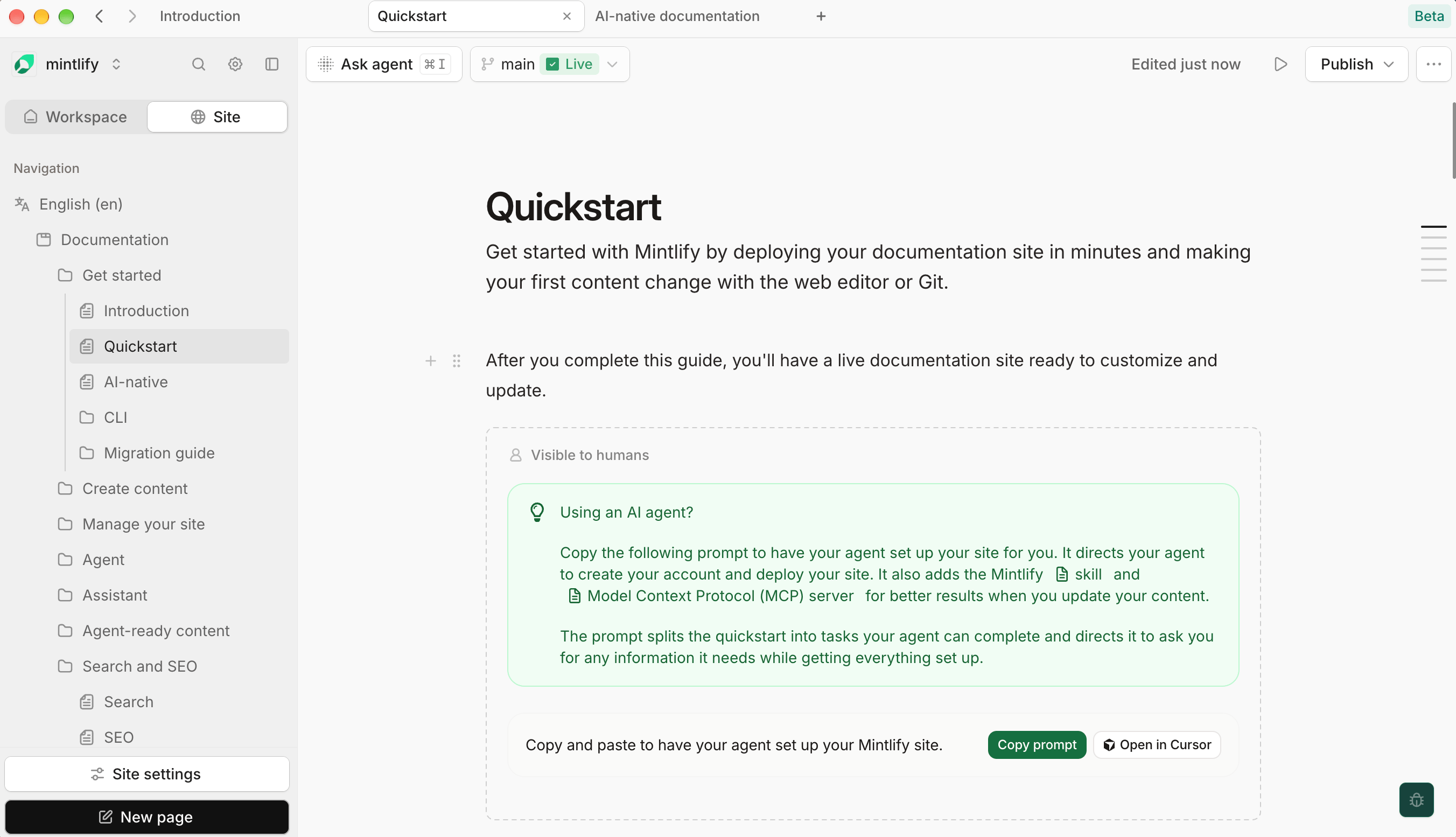
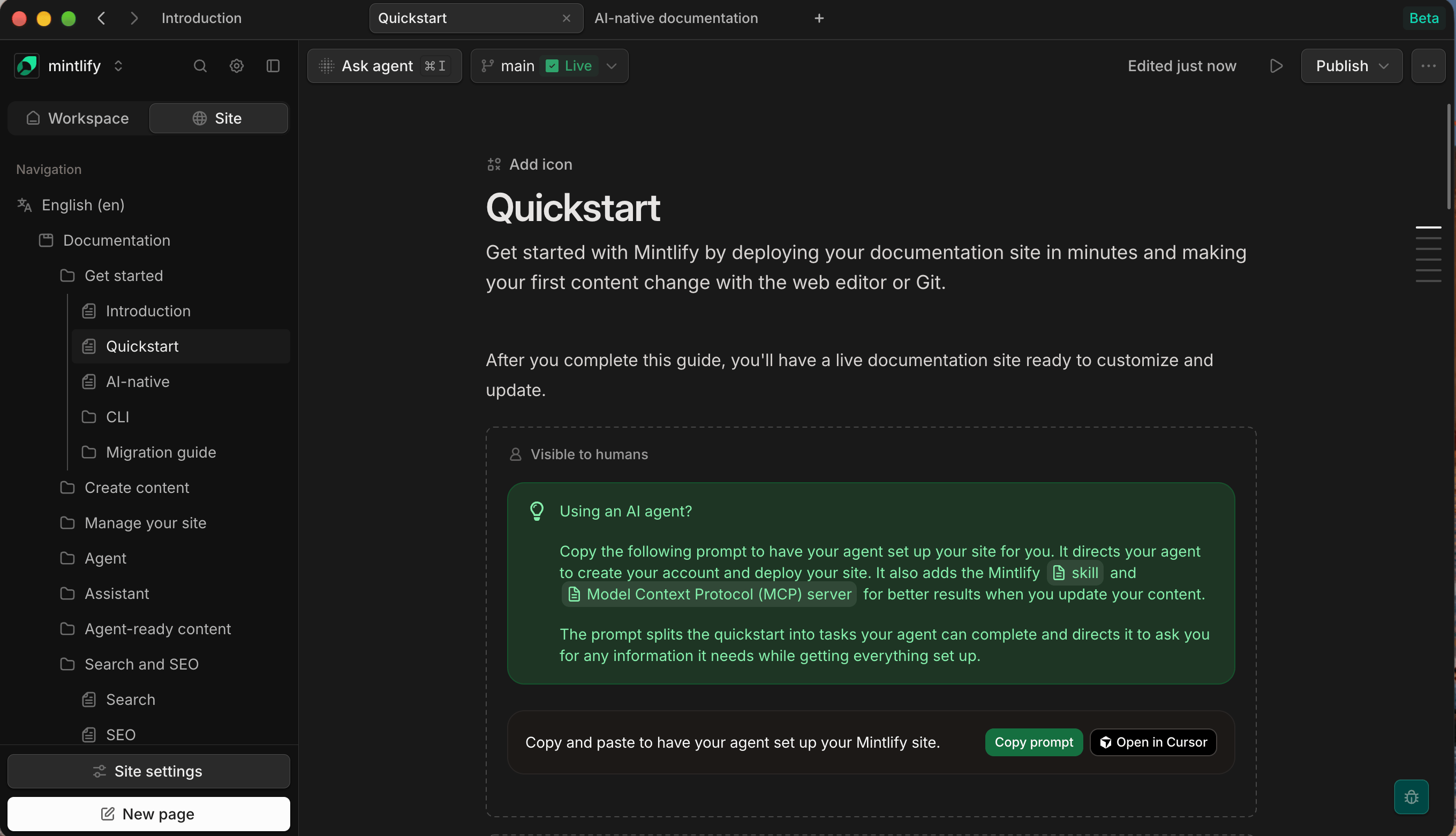
Install the Mintlify desktop app for macOS, Windows, or Linux to use your dashboard and editor in a native window with tabs and keyboard shortcuts.
The Mintlify desktop app runs your dashboard and editor on your computer. Work in tabs or multiple windows with access to the same content and settings you access in the browser.
The desktop app updates content the same way the editor does. It does not open or edit files on your computer. To work on local files, use the CLI.
Install
Section titled “Install”Requires macOS 14 or later on Apple silicon.
- Download the desktop app from mintlify.com/desktop.
- Open the file.
- Drag Mintlify to your Applications folder.
You can also install from the terminal.
curl -fsSL https://desktop.mintlify.com/install.sh | bashThe script installs to /Applications, or to ~/Applications if you can't write to /Applications.
Requires Windows 10 or later, 64-bit.
- Download the desktop app from mintlify.com/desktop.
- Run the installer.
Requires an x86_64 machine. The desktop app is available as an AppImage and a .deb package.
Download either file from mintlify.com/desktop or install the AppImage from the terminal.
curl -fsSL https://desktop.mintlify.com/install.sh | bashThe script installs the app to ~/.local/share/mintlify-desktop, adds a mintlify-desktop command to ~/.local/bin, and adds Mintlify to your application menu.
AppImages require FUSE 2. If the desktop app doesn't start, install FUSE 2. On Ubuntu:
sudo apt install libfuse2Sign in
Section titled “Sign in”The desktop app signs you in with the Mintlify account you already use in your default browser.
- Open the desktop app. The desktop app shows a Log in to Mintlify screen.
- Click Continue in browser. Your default browser opens a Mintlify consent page that shows your account and organization.
- Click Approve. To sign in to another organization, click Use a different organization first.
- Return to the desktop app. The desktop app signs you in.
The desktop app and your browser share the same session. Signing out of one signs you out of the other.
Sign in without your browser
Section titled “Sign in without your browser”Browser sign-in isn't available for every organization. If the consent page says desktop login is not available, sign in inside the desktop app instead:
- On the Log in to Mintlify screen, click Log in here instead.
- Sign in the same way you sign in to your dashboard in your browser.
Tabs and windows
Section titled “Tabs and windows”Open each page you're working on in its own tab or window. Tabs and windows reopen where you left them when you restart the app.
Right-click a tab to duplicate it, copy its link, or close other tabs. Middle-click a tab to close it.
To show tabs in a sidebar instead of across the top of the window, change the tab layout in Settings.
Each tab has its own session
Section titled “Each tab has its own session”A new tab opens signed in to the same account and organization as the tab you opened it from. After that, each tab keeps its own session:
- Switching organizations in one tab doesn't change your other tabs, so you can work in different organizations side by side.
- Signing out or signing in to a different account only affects that tab.
To sign out everywhere, use Clear all data in Settings.
Links to other sites
Section titled “Links to other sites”Tabs only load the Mintlify dashboard and the services it uses for signing in, accessing credits for AI features, and connecting Git providers. Links to any other site open in your default browser.
Keyboard shortcuts
Section titled “Keyboard shortcuts”On Windows and Linux, use Ctrl instead of Cmd.
| Action | Shortcut |
|---|---|
| New tab | Cmd + T |
| New window | Cmd + Shift + N |
| Close tab | Cmd + W |
| Close window | Cmd + Shift + W |
| Go to tab 1-9 | Cmd + 1-9 |
| Next tab | Ctrl + Tab |
| Previous tab | Ctrl + Shift + Tab |
| Back | Cmd + [] |
| Forward | Cmd + |
| Reload | Cmd + R |
| Find in page | Cmd + F |
| Find next | Cmd + G |
| Find previous | Cmd + Shift + G |
| Copy page URL | Cmd + Shift + C |
| Open settings | Cmd + , |
For shortcuts inside the editor, see Keyboard shortcuts.
Settings
Section titled “Settings”Open settings with Cmd + , on macOS or Ctrl + , on Windows and Linux.
- Tab layout: Show tabs across the top of the window (Horizontal) or in a sidebar (Vertical).
- Check for updates: Check for a new version of the app. See Updates.
- Clear all data: Sign out of every tab, close all tabs, and reset settings. The app restarts.
The settings window also shows the app version.
Updates
Section titled “Updates”The app checks for updates when it starts and every four hours while it runs. When an update is available, an Update button appears in the tab bar.
To manually check for updates, click Check for updates in Settings. You can also select Check for Updates… from the app menu. On macOS, it's under About Mintlify in the Mintlify menu. On Windows and Linux, it's at the bottom of the File menu. A dialog shows whether an update is available and lets you install it.
- macOS: Click Update to download and install the update in the app.
- Windows and Linux: Click Update to download the new version from your browser, then install it.
Uninstall
Section titled “Uninstall”- Quit the desktop app.
- Move Mintlify from your Applications folder to the Trash.
- To remove your sign-in and settings, delete
~/Library/Application Support/Mintlify Electron.
- Open Settings > Apps > Installed apps.
- Find Mintlify and click Uninstall.
- To remove your sign-in and settings, delete
%APPDATA%\Mintlify Electron.
If you installed the desktop app with the script, delete the files it created:
rm -rf ~/.local/share/mintlify-desktop \
  ~/.local/bin/mintlify-desktop \
  ~/.local/share/applications/mintlify-desktop.desktop \
  ~/.local/share/icons/hicolor/512x512/apps/mintlify-desktop.png
If you installed the .deb package, remove it with your package manager.
To remove your sign-in and settings, delete ~/.config/Mintlify Electron.
Related topics